Email breached? 7 steps: check scope, change passwords, enable 2FA, scan for malware, monitor finances.
What to Do If Your Email Has Been Breached: Complete Step-by-Step Guide
Discovering your email has been breached is alarming, but what you do in the first few hours makes all the difference. Whether your credentials appeared in a data leak, your inbox was accessed by an unauthorized person, or your device was infected with an infostealer, this guide walks you through exactly what to do — step by step.
Over 10 billion credentials have been leaked in data breaches worldwide. If you have not been affected yet, it is statistically only a matter of time. Knowing the response plan before it happens is your best defense.
First, Understand What Happened: Breach Types Explained
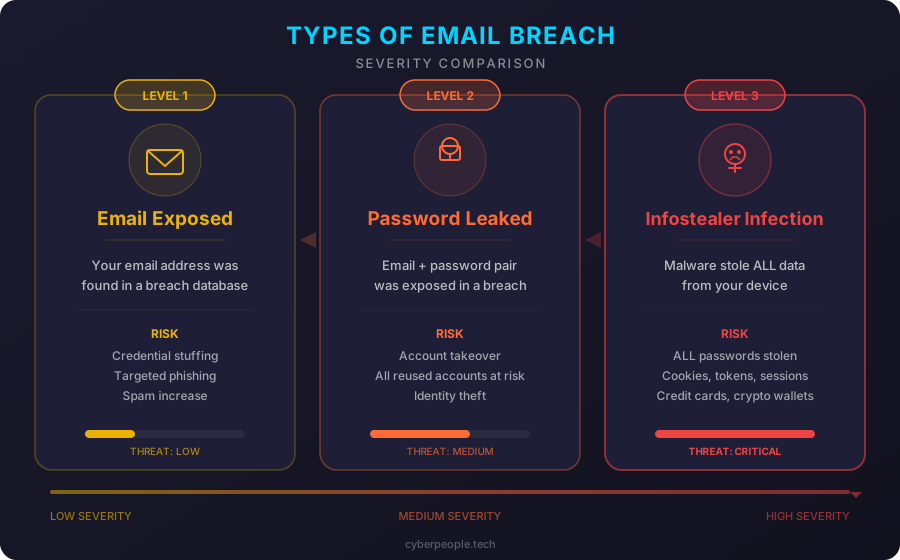
Before taking action, you need to understand what kind of breach you are dealing with. The response differs depending on the type:
- Compromised email address — Your email appeared in a data breach from a third-party service (e.g., LinkedIn, Adobe, Dropbox). Attackers know your email exists and may try credential stuffing or phishing. Your mailbox itself may not be accessed yet.
- Compromised password — Your email and password pair has been exposed. If you reuse that password on other services, all of those accounts are at risk immediately. This is the most common and most dangerous scenario for people who reuse passwords.
- Infostealer infection — Malware on your device has harvested saved passwords, browser cookies, session tokens, and possibly financial data. This is the most severe scenario because the attacker may have access to everything your browser remembers — not just one service, but all of them. Infostealers like RedLine, Raccoon, and Lumma are responsible for millions of credential leaks in 2025-2026.
The steps below cover all three scenarios. If you suspect an infostealer, pay extra attention to Steps 5 and 6.
The First 24 Hours: Priority Checklist
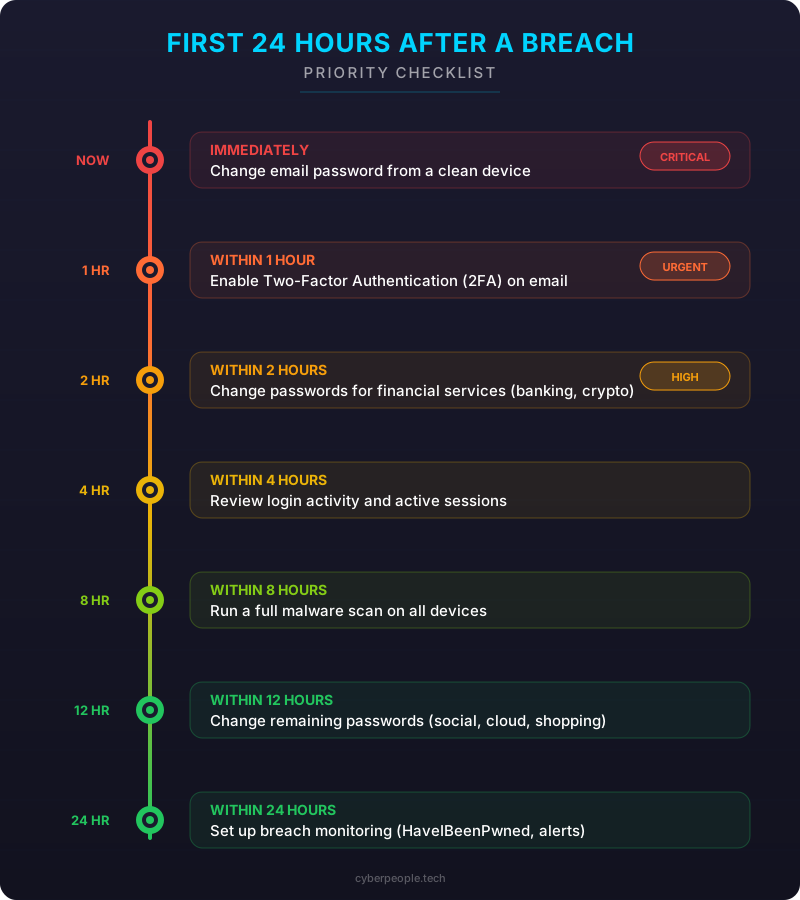
Before diving into the detailed steps, here is your emergency checklist for the first 24 hours:
- Immediately: Change your email account password from a clean device
- Within 1 hour: Enable 2FA on your email account
- Within 2 hours: Change passwords for financial services (banking, PayPal, crypto wallets)
- Within 4 hours: Review recent login activity on your email and key accounts
- Within 8 hours: Run a full malware scan on all your devices
- Within 12 hours: Change passwords on remaining high-value accounts (cloud storage, social media, work accounts)
- Within 24 hours: Set up breach monitoring and review financial statements
Now, let us walk through each step in detail.
7 Steps to Take After an Email Breach
-
Check the Scope of the Breach
Before you panic-change every password, find out exactly what was exposed. This determines how aggressively you need to respond.
Use the CyberPeople Breach Check tool to see if your email appears in known data breaches. It will show you which services were breached, when the breach occurred, and what data types were exposed (email, password, phone number, address, etc.).
What to look for:
- Which services were breached — prioritize those accounts first
- When the breach happened — if it was recent, act faster
- What data was exposed — "password" and "password hash" mean your credentials are at risk
- Whether plaintext passwords or hashed passwords were leaked — plaintext is worse
Pro tip: Check all your email addresses, not just your primary one. Many people forget about old accounts that use a secondary or work email.
-
Change Passwords Immediately
Start with the most critical accounts and work outward. Order matters here.
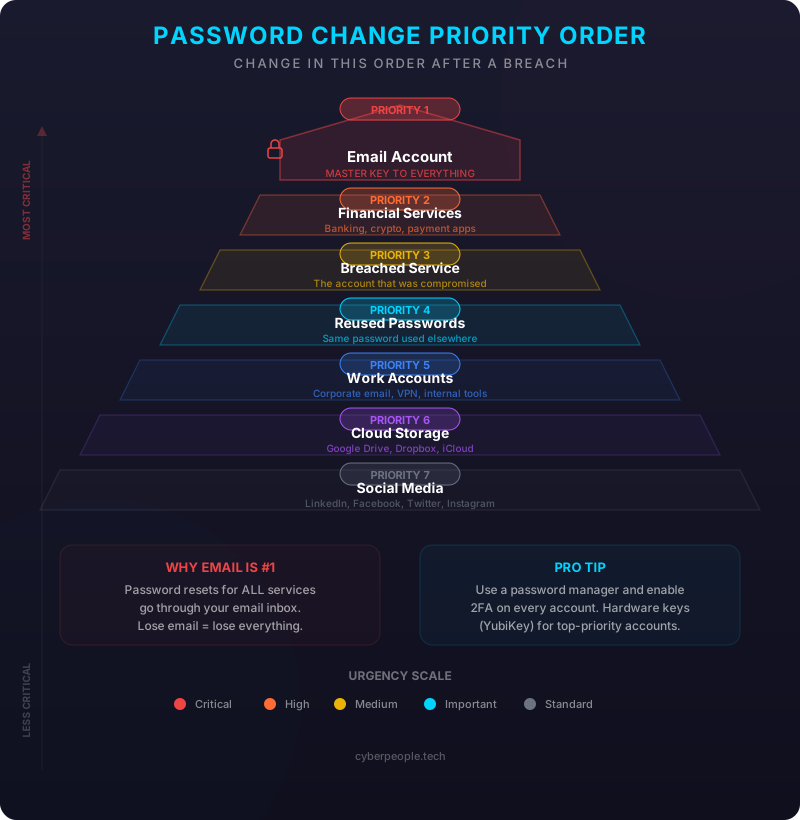
Change in this exact order:
- Your email account itself — this is the master key. With access to your email, an attacker can reset passwords on everything else.
- Financial accounts — banking, investment platforms, PayPal, Revolut, crypto exchanges and wallets.
- The breached service — whatever service the leaked credentials came from.
- Any account where you reused the same password — be honest with yourself. If you used "Summer2024!" on three services, change all three.
- Work and business accounts — especially if your breached email is linked to corporate systems.
- Cloud storage — Google Drive, Dropbox, iCloud. These often contain sensitive documents.
- Social media — attackers use compromised social accounts for scams and impersonation.
Password rules for 2026: Use a password manager (Bitwarden, 1Password, KeePassXC) and generate unique 16+ character passwords for every account. If you are not using a password manager yet, this breach is your sign to start. Memorizing passwords does not scale.
Important: change passwords from a device you trust is clean. If you suspect malware, use a different device first (see Step 5).
-
Enable Two-Factor Authentication (2FA) Everywhere
A strong password alone is not enough. Two-factor authentication ensures that even if your password is leaked again, an attacker cannot access your account without the second factor.
Recommended 2FA apps:
- Google Authenticator — simple, reliable, now supports cloud backup of your codes
- Authy — supports multi-device sync and encrypted backups, good for people with multiple devices
- Microsoft Authenticator — best choice if you use Microsoft/Outlook ecosystem
Priority accounts for 2FA:
- Email (Gmail, Outlook, ProtonMail)
- Banking and financial services
- Password manager
- Cloud storage (Google Drive, Dropbox, OneDrive)
- Social media (LinkedIn, Facebook, Twitter/X)
- Work accounts and VPN
Avoid SMS-based 2FA when possible. SIM-swapping attacks can intercept SMS codes. App-based or hardware key (YubiKey) 2FA is significantly stronger. If SMS is the only option a service offers, enable it anyway — it is still better than no 2FA at all.
Tip: When you enable 2FA, save the backup/recovery codes in your password manager or print them and store them securely offline. If you lose your phone without backup codes, you may lock yourself out permanently.
-
Priority order for changing passwords after a breach Check for Unauthorized Access
After securing your accounts, investigate whether someone already accessed them.
For Gmail: Scroll to the bottom of your inbox and click "Details" under "Last account activity." Review all sessions — look for unfamiliar locations, IP addresses, or device types.
For Outlook/Microsoft: Go to account.microsoft.com, then Security, then "Review recent activity."
What to look for across all accounts:
- Unfamiliar login locations — a login from a country you have never visited is a clear red flag
- Forwarding rules — attackers often set up email forwarding to a secondary address so they keep receiving your emails even after you change the password. In Gmail: Settings > Forwarding. In Outlook: Settings > Mail > Forwarding. Delete any rule you did not create.
- App permissions — check which third-party apps have access to your email. Remove anything you do not recognize. In Gmail: myaccount.google.com/permissions
- Sent items and drafts — look for emails you did not send. Attackers sometimes use compromised accounts to send phishing emails to your contacts
- Filter and label changes — some attackers create filters that automatically delete security notifications so you do not notice the breach
If you find evidence of unauthorized access: Sign out of all sessions immediately (most email providers offer a "Sign out of all other sessions" option), change your password again, and consider contacting the service provider's security team.
-
Scan All Devices for Malware
If your credentials were stolen by an infostealer (rather than a server-side breach), the malware may still be running on your device, harvesting new passwords as you change them. Scanning is essential.
Recommended free scanning tools:
- Malwarebytes Free (Windows, Mac) — excellent at detecting infostealers, adware, and trojans. Download from malwarebytes.com, run a full system scan. The free version handles on-demand scanning well.
- ESET Online Scanner (Windows) — runs from your browser, no full installation needed. Good as a second-opinion scanner alongside your primary antivirus. Available at eset.com/online-scanner.
- Windows Defender Offline Scan (Windows) — built into Windows 10/11. Go to Windows Security > Virus & threat protection > Scan options > Microsoft Defender Offline scan. This reboots your PC and scans before Windows fully loads, catching rootkits that hide during normal operation.
Critical steps:
- Run scans on every device you use to access email — desktop, laptop, phone
- Use at least two different scanning tools for thorough coverage
- After cleaning, change your passwords again (the ones you changed in Step 2 may have been captured by malware that was still active)
- Clear your browser's saved passwords and cookies — infostealers harvest these, and session cookies can grant access without any password
If malware is found: Consider the device fully compromised. The safest approach is to back up your data, factory reset or reinstall the OS, then restore. Anything less may leave remnants behind.
-
Monitor Financial Accounts
Credential breaches often lead to financial fraud, especially if the same password was used for banking or payment services.
Take these actions immediately:
- Log into your bank accounts and review transactions for the past 30 days. Look for small test charges (attackers often make a small purchase first to verify the card works before making larger ones).
- Check PayPal, Revolut, Wise, or any payment platform linked to your email.
- If you use cryptocurrency, verify wallet balances and recent transactions. Check for unauthorized approvals on DeFi platforms.
- Enable transaction notifications on all bank accounts and cards — get a push notification for every transaction, no matter how small.
If you find unauthorized transactions:
- Contact your bank immediately to freeze the card and dispute the charges
- File a report with your local cyber police (in Ukraine: cyberpolice.gov.ua)
- Document everything — screenshots, dates, amounts — you will need this for disputes and investigations
Long-term monitoring: Continue checking financial statements weekly for at least 3 months after a breach. Some attackers wait weeks or months before acting on stolen data.
-
Subscribe to Breach Alerts for Ongoing Protection
A breach is not a one-time event. Your exposed data may be repackaged and sold on underground forums months or years later. Continuous monitoring is essential.
Set up these alerts:
- CyberPeople Newsletter — subscribe at cyberpeople.tech for weekly threat intelligence, breach alerts, and cybersecurity news relevant to Ukrainian and international users.
- Google Alerts — set up alerts for your email address and full name to catch mentions in publicly indexed breach databases.
- Password manager breach monitoring — Bitwarden, 1Password, and others include built-in breach detection that automatically warns you if any saved password appears in a new data breach.
Build lasting security habits:
- Use a unique password for every account — a password manager makes this effortless
- Enable 2FA on every service that supports it
- Review account permissions and connected apps quarterly
- Keep your operating system, browser, and apps updated — many infostealers exploit known vulnerabilities in outdated software
- Be skeptical of emails asking you to click links or download attachments, especially after a breach when targeted phishing is likely
Summary
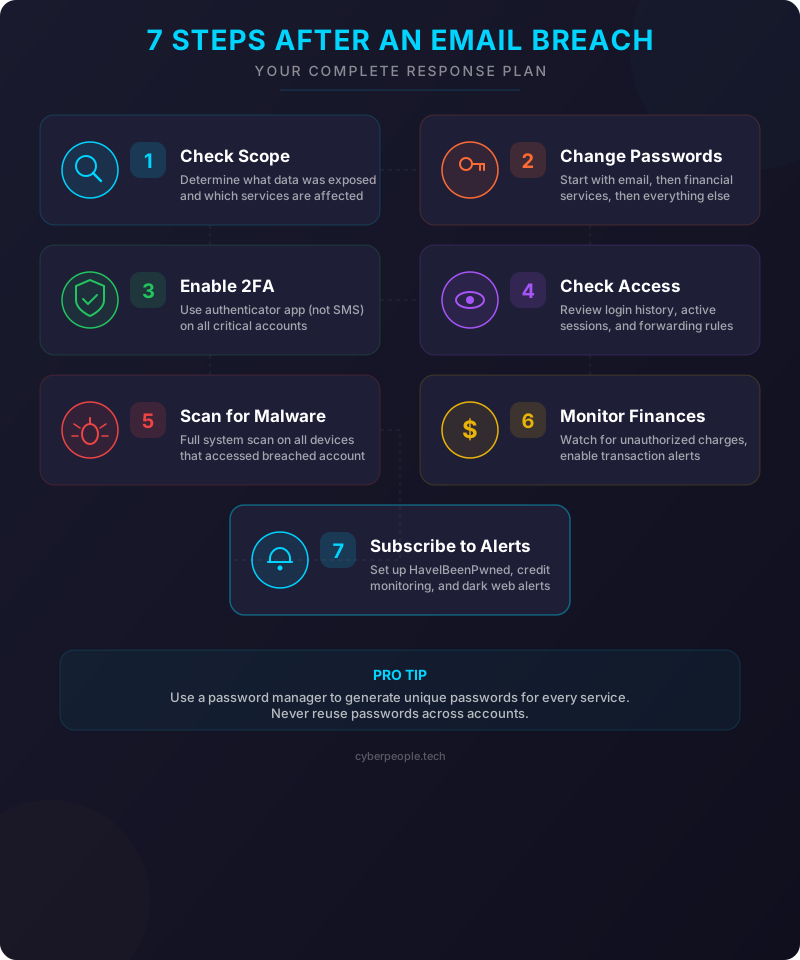
An email breach is serious, but recoverable if you act fast and methodically. To recap the seven steps:
- Check the scope of the breach
- Change passwords immediately, starting with the most critical accounts
- Enable two-factor authentication everywhere
- Check for unauthorized access and remove suspicious forwarding rules
- Scan all devices for malware
- Monitor financial accounts for unauthorized transactions
- Subscribe to breach alerts for ongoing protection
The difference between a minor inconvenience and identity theft often comes down to how fast you respond. Bookmark this page, share it with colleagues and family, and have the plan ready before you need it.
Was your email breached? Check now with our free Breach Check tool and take the first step toward securing your accounts.